Knowledge base · Ontario CourtBuddy 1.20.10 · Last updated October 2, 2026
Knowledge base · User guide
Ontario CourtBuddy — the complete guide
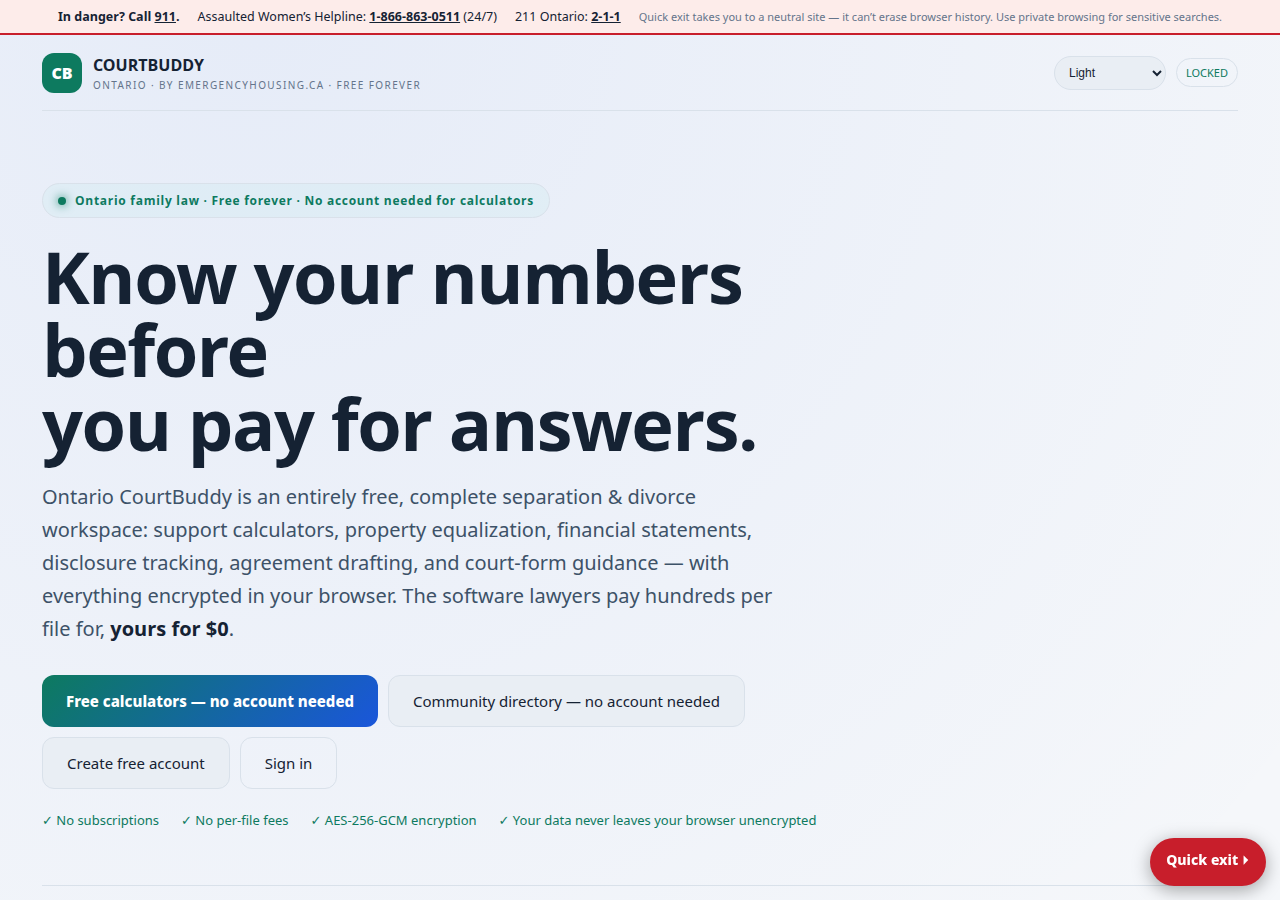
Ontario CourtBuddy is a free Ontario family-law workspace: support calculators, property equalization, financial-statement worksheets, disclosure tracking, agreement drafting tools, court-form guidance, safety resources, a community directory, and a housing-registry directory — with your case data encrypted in your browser before it is stored.
Entirely free · Free forever. There are no subscriptions, no per-file fees, and no paid tiers. The public calculators, the Community Directory, and the Housing Registry Directory need no account at all; the full workspace needs only a free encrypted account.
Getting started
What each part of the app is for
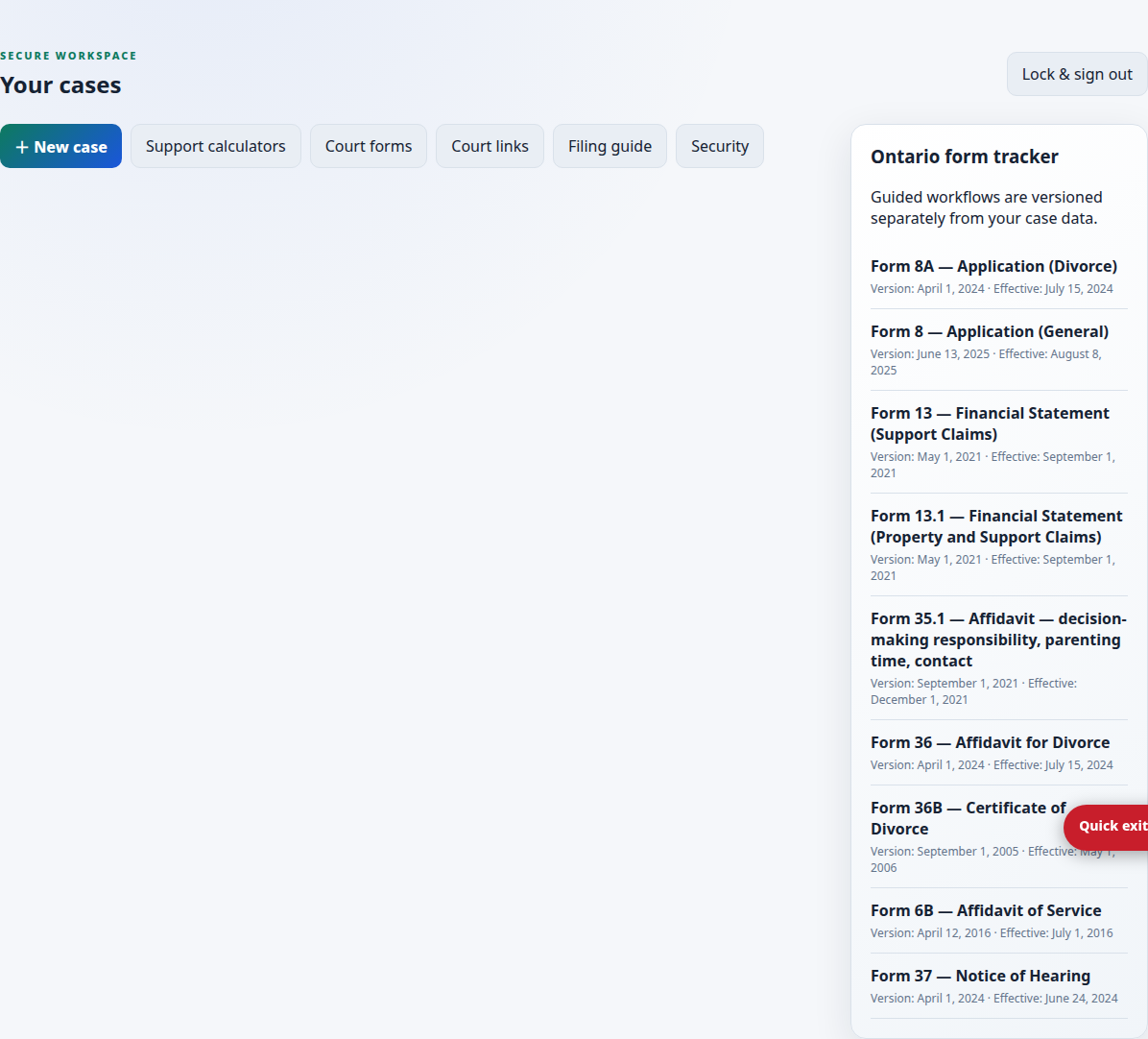
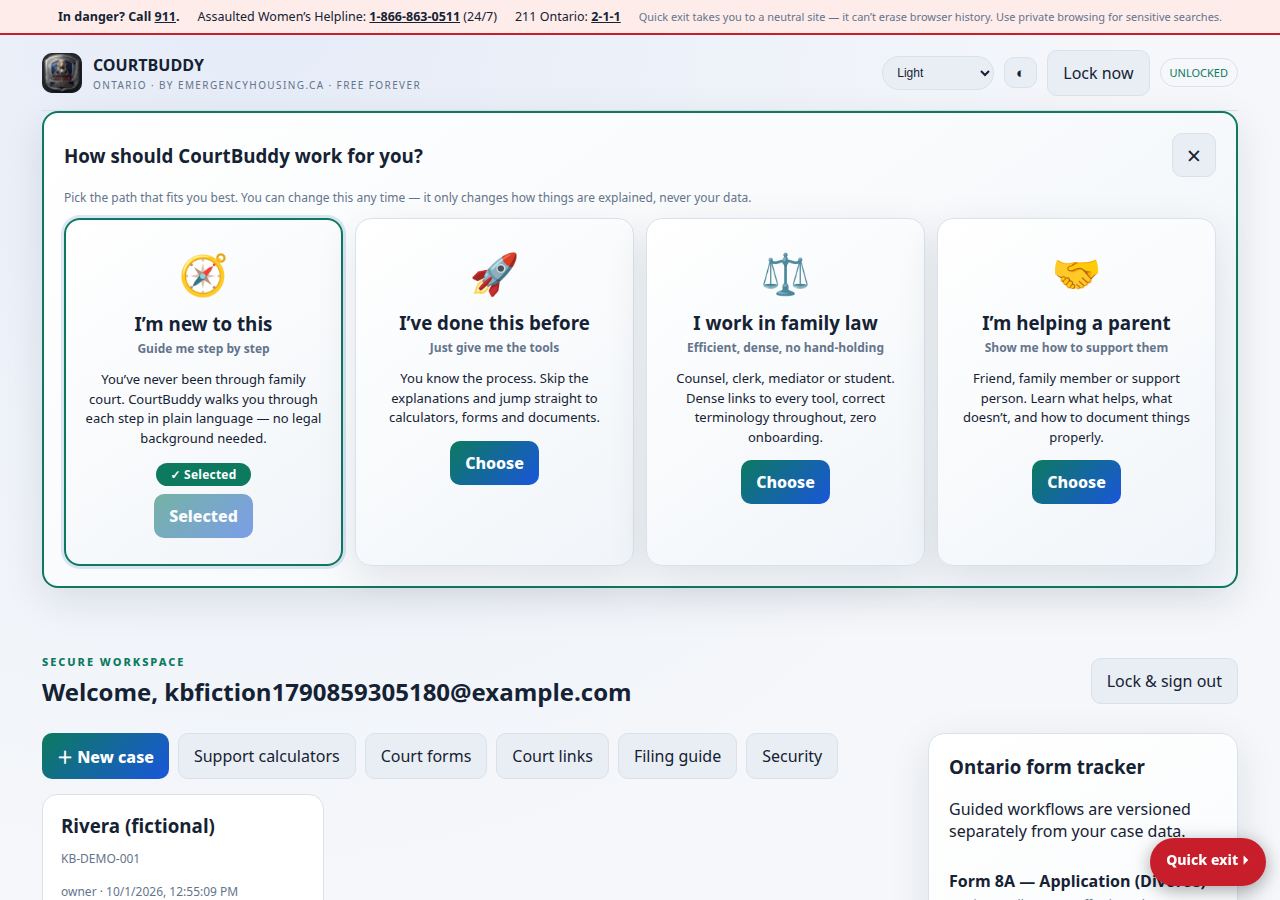
- Your cases (dashboard) — your case list, the “+ New case” button, quick links to calculators, court forms, court links, the filing guide, and security, a 📁 Form Repository button (browse the full form library without opening a case), a Mission Control widget, and a Reminders panel — plus the Ontario form tracker sidebar showing current official form versions.
- Case workspace tabs — Overview (case details), Mission (next-steps hub), Matter (parties and children), Calculators (with saved results), Forms (worksheets, checklists, disclosure, offers, and filing packages), Planning (tasks and timelines), Action items (per-case to-do list), SWOT (case strategy analysis), Safety (protection-order guidance), Chronicle (incident records), SafePath (safety plan), Reunify (reunification planner), Child welfare (concerns log), Parenting time, Access calendar (year-at-a-glance parenting-time calendar), Comms (co-parent email drafts), Documents (your document inventory), Trackers (support/expense trackers), Directory and Housing (the public directories inside your workspace), Pro tools, Journal (encrypted notes and timeline), Members (invite another user to a case with wrapped encryption keys).
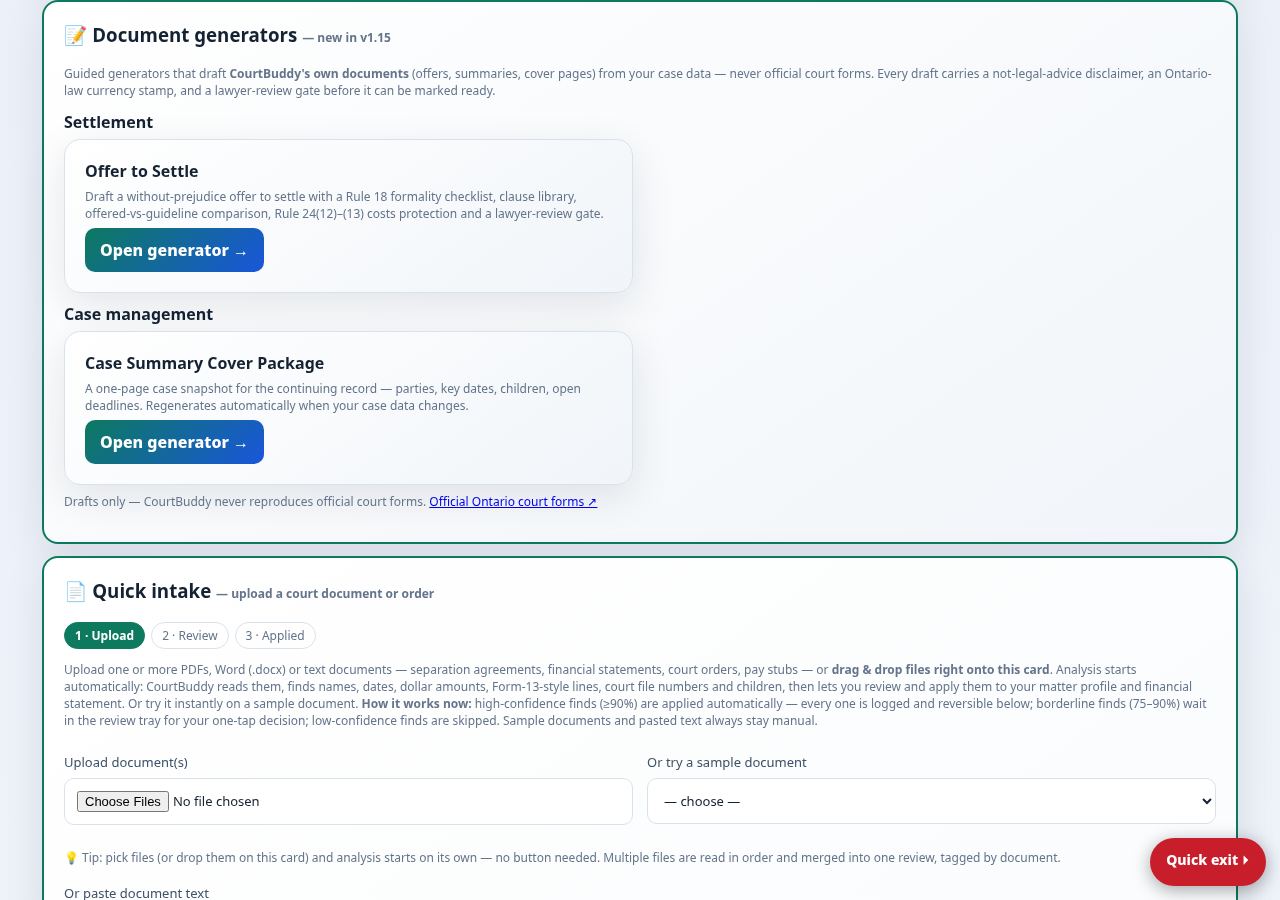
- Quick intake — upload an existing court document (PDF or Word); CourtBuddy extracts names, dates, and dollar figures and offers to apply them to your case.
Your first case — a fictional walkthrough FICTIONAL
Everything in this section is a made-up example. “Sarah Mitchell (fictional)” and “David Mitchell (fictional)” are invented names; the numbers, dates, and facts below are invented only to show how the screens work. Do not treat them as real cases, and do not treat the results shown as correct for your situation — they are legal information, not legal advice.
How-to guides
⚖ Ontario law as of 2026-10-02. Legal information only — not legal advice. These guides show how the buttons work; they say nothing about what you should do in your matter. Verify every procedure against official sources and talk to a licensed Ontario lawyer or legal clinic. Every guide below says what the app handles and what you must do yourself.
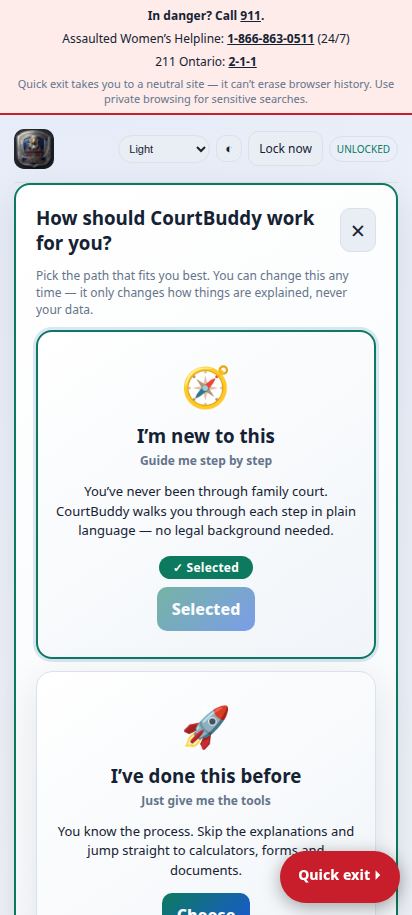
Every screenshot below is a genuine capture of the current release, taken with a fictional case (“Rivera (fictional)”). Names, dates, and amounts in the screenshots are invented for demonstration. Everything starts on the Your cases dashboard — desktop and phone:
Guide 1 · Upload a document, check the analysis, and impute the data
The app handles: reading files, detecting values with confidence scores, auto-applying only high-confidence finds, logging everything so it can be undone. You must do yourself: review every row before applying — detection is a guess, and it can mis-map a field (a birth date can land on the wrong person). Verify names, dates, and amounts against the original document.
Guide 2 · Route labeled fields with one tap
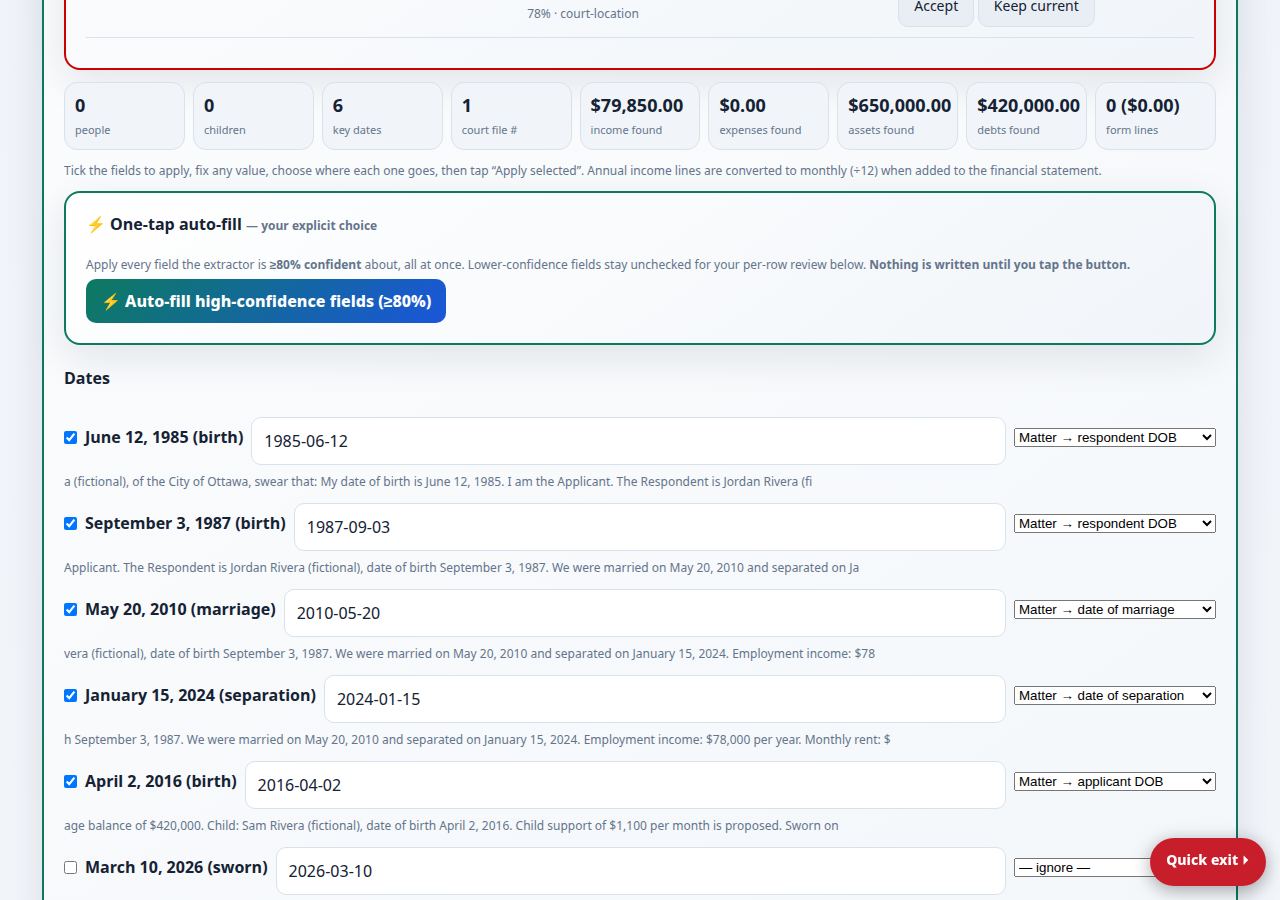
The app handles: reading the label next to each value, suggesting the right destination, recording payer/payee on support orders, and adding court dates to the timeline. You must do yourself: tap the chip that matches the original document — a label can sit in the wrong column on a messy scan. When in doubt, open the ⋯ list and choose deliberately.
Guide 3 · Generate a CourtBuddy form (guided or manual)
The app handles: merging your saved data, organizing fields, the print package. You must do yourself: fill in what’s missing truthfully, have an Ontario lawyer review the form before you rely on it, and print/file/serve it yourself — CourtBuddy never files anything with any court.
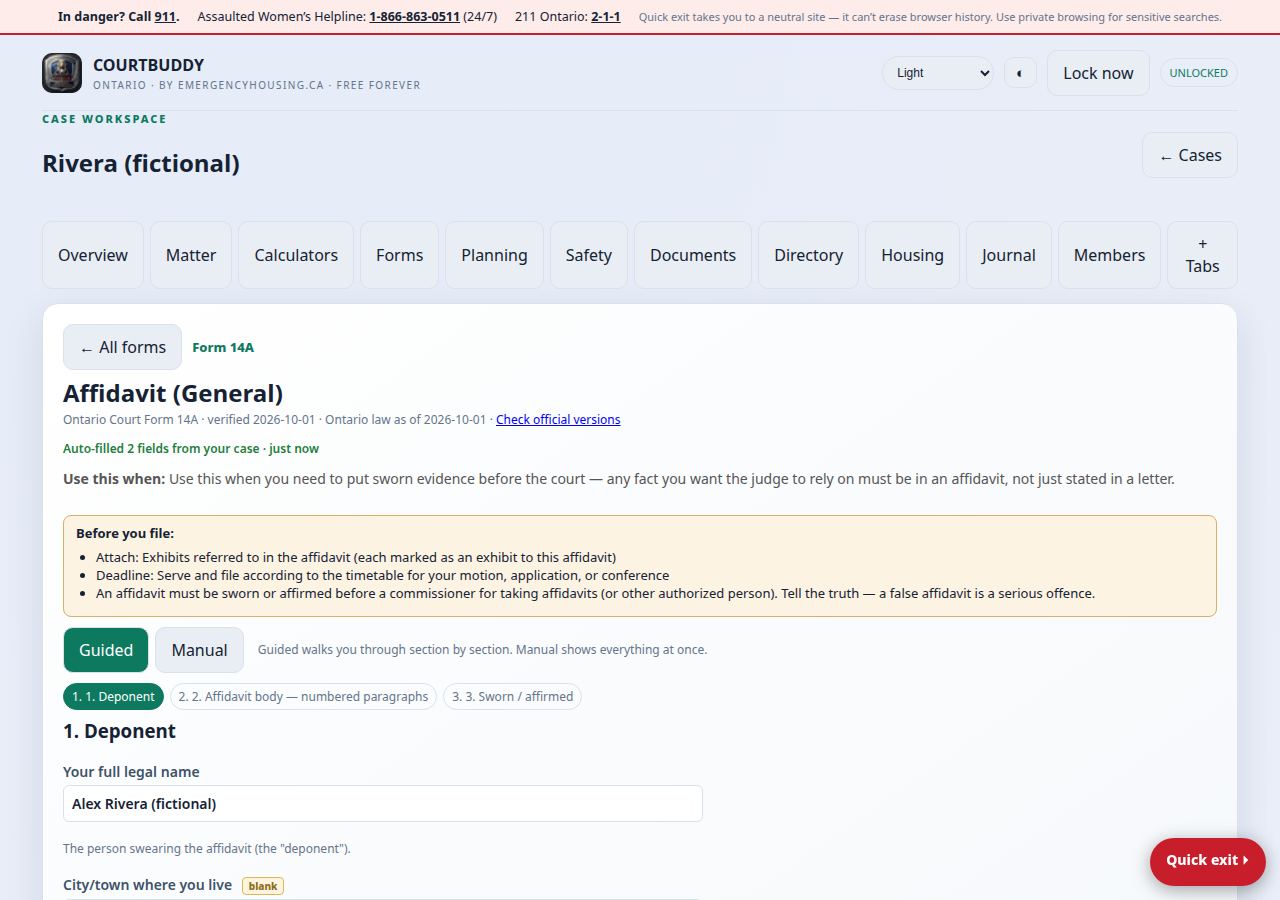
Guide 4 · Draft an Offer to Settle
The app handles: the Rule 18 formality checklist, the clause library, the offered-vs-guideline comparison, costs-protection information (Rule 24(12)–(13)), and the draft formatting. You must do yourself: decide the terms, get independent legal advice before serving, and serve the offer yourself — the app does not send, serve, or file anything.
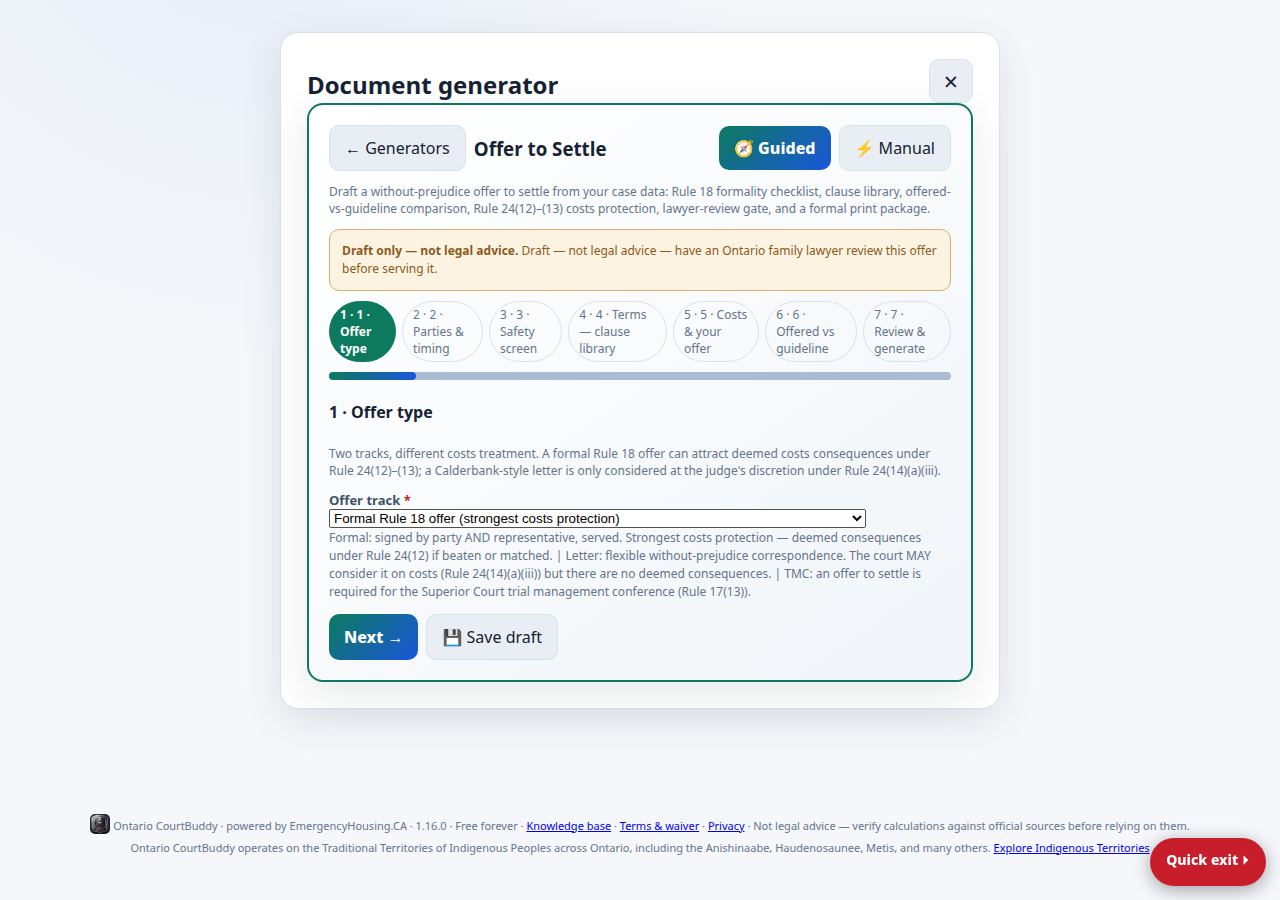
Guide 5 · Send & Share a package
The app handles: assembling the addressed package, encrypting the share file, drafting the cover letter, keeping the log. You must do yourself: send it from your own mail app (CourtBuddy never sends email), or print and serve it yourself. Sharing is informational only — it is not service of process and does not replace the Family Law Rules service requirements.
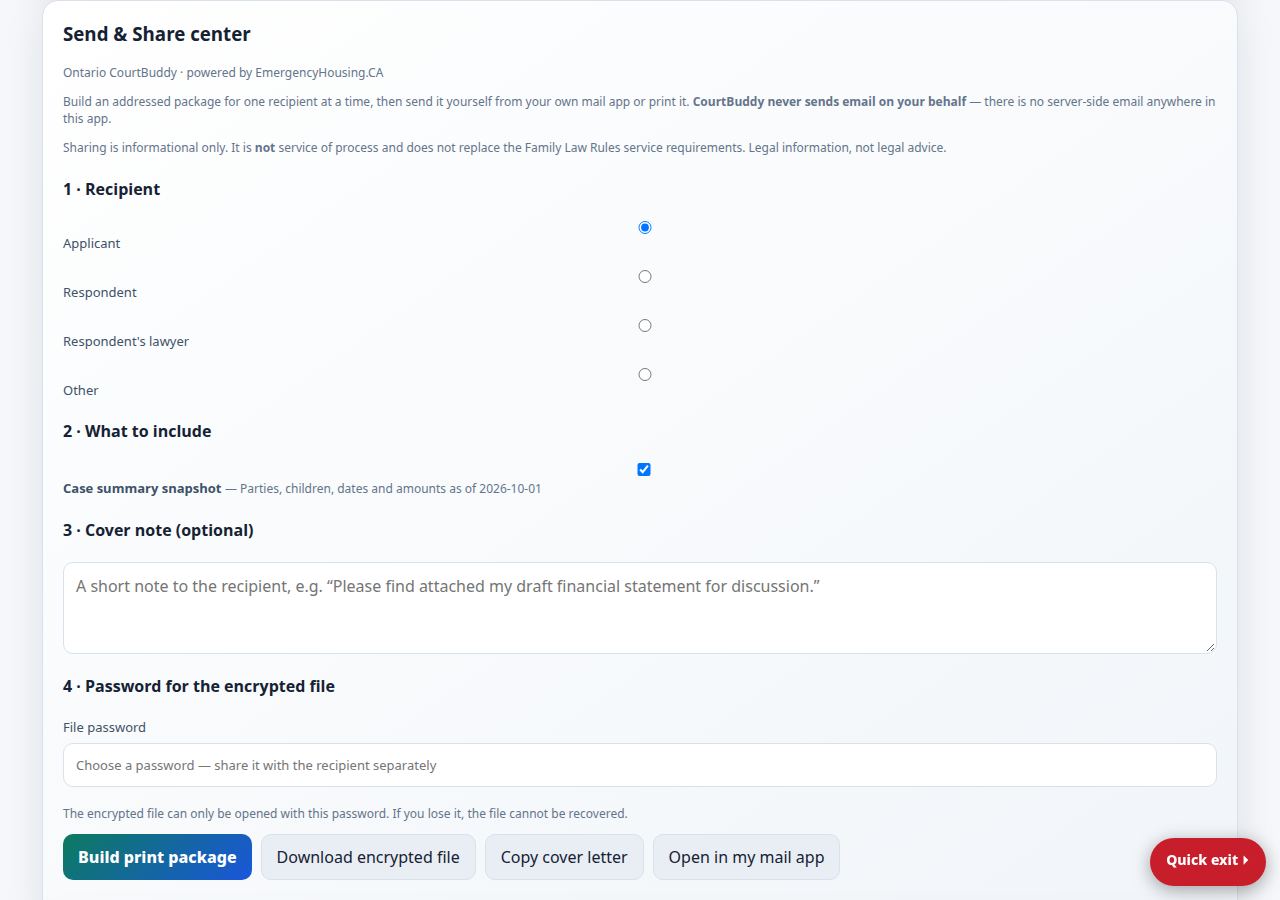
Guide 6 · Back up and restore your case (encrypted export/import)
courtbuddy-encrypted-case-backup.json. Both are ciphertext — unreadable without your keys. Store them somewhere safe and private.The app handles: encrypting the package, verifying integrity on import, assigning a safe new case ID. You must do yourself: keep the backup file and your password — lose either and the backup is useless. Test nothing is automatic: no backup happens unless you export.
Guide 7 · Change your password
The app handles: re-deriving your encryption keys and re-securing your account. You must do yourself: remember the new password — there is deliberately no recovery path if you lose it.
Guide 8 · Blur the screen in a hurry (privacy blur)
The app handles: hiding the screen instantly. You must do yourself: remember blur is not a lock — the session is still open underneath. Use Lock now or Lock & sign out when you leave the device.
Guide 9 · Pick a colour theme
The app handles: applying the theme instantly; your choice is stored on your device only. You must do yourself: nothing — themes are cosmetic and never touch your data.
Guide 10 · Deadline reminders
The app handles: checking reminders on load, regenerating affected surfaces automatically. You must do yourself: open the app regularly and keep your own calendar — CourtBuddy sends no emails, no push notifications, and runs no background jobs, so it cannot remind you when it’s closed.
Guide 11 · Record incidents in the Chronicle and build a SafePath safety plan
The app handles: organizing incidents into a timeline, drafting facts-only affidavit paragraphs from your words, scoring screens and assessments, storing everything encrypted in your case (zero-knowledge). You must do yourself: write facts in your own words and review every drafted paragraph before swearing an affidavit; build and keep your safety plan current; reach out to the listed helplines and services yourself — CourtBuddy cannot contact anyone for you.
Module guides — the current build
⚖ Ontario law as of 2026-10-02. These guides cover how the newest modules work — features, not law. Legal information only — not legal advice. Verify every procedure against official sources and talk to a licensed Ontario lawyer or legal clinic.
Short guides for the newest workspace modules. Every screenshot in this section is a genuine capture of the current release, taken with a fictional case (“Rivera (fictional)”). The tab names below are the real button labels in the app.
1 · Email verification at sign-up (no email ever sent)
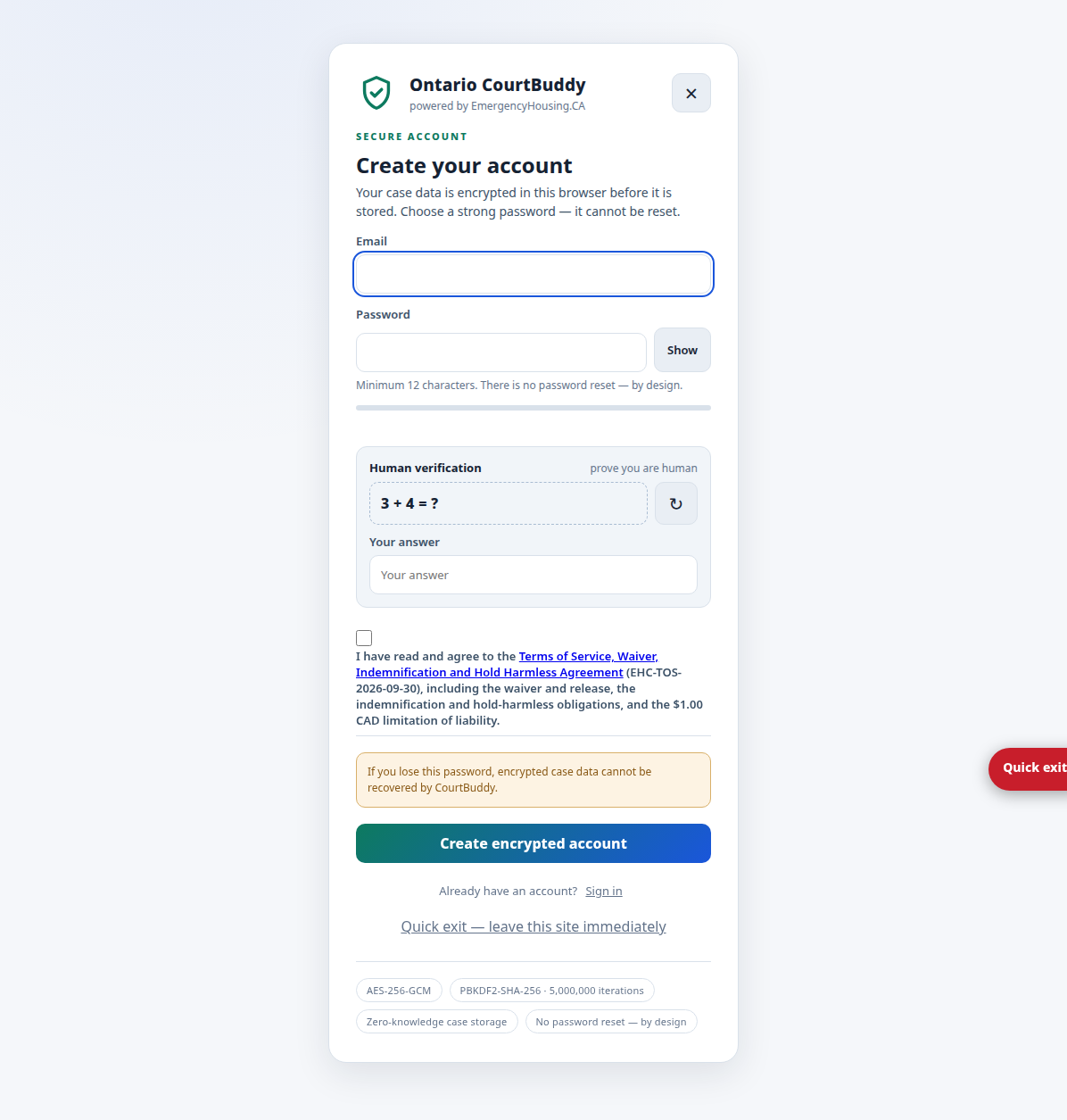
When you create an account, CourtBuddy checks that your email address looks real and can receive mail — without sending you anything. The checks are: strict address format, a “Did you mean …?” prompt when a common typo is detected (confirm or correct), a check that the domain has working mail servers (MX record), a block on throwaway/disposable addresses, and a soft warning for role addresses like admin@ or noreply@.
The honest limit: these checks confirm the address is receivable — they cannot prove you own the mailbox, and the sign-up screen says so: “We check that your address looks real and its domain can receive mail. CourtBuddy never sends email — this can't prove you own the mailbox.” The server never sends email: no confirmations, no reminders, no newsletters, no password resets. Treat any email claiming to be CourtBuddy about your case as suspicious.
2 · Access calendar — the year at a glance
Open your case → the 🗓 Access calendar tab → the Access Calendar Generator. Three ways to start:
The calendar understands Canadian occasions — Family Day, Good Friday, Easter Monday, Victoria Day, Canada Day, the Civic Holiday, Thanksgiving, March Break, the Christmas school break, and more — with alternating-year holidays, per-day notes, and exchange times. Print the year for your records: the printout carries the Ontario CourtBuddy brand mark on page one.
3 · The calculators suite
The Calculators tab holds the full suite, all free with no account:
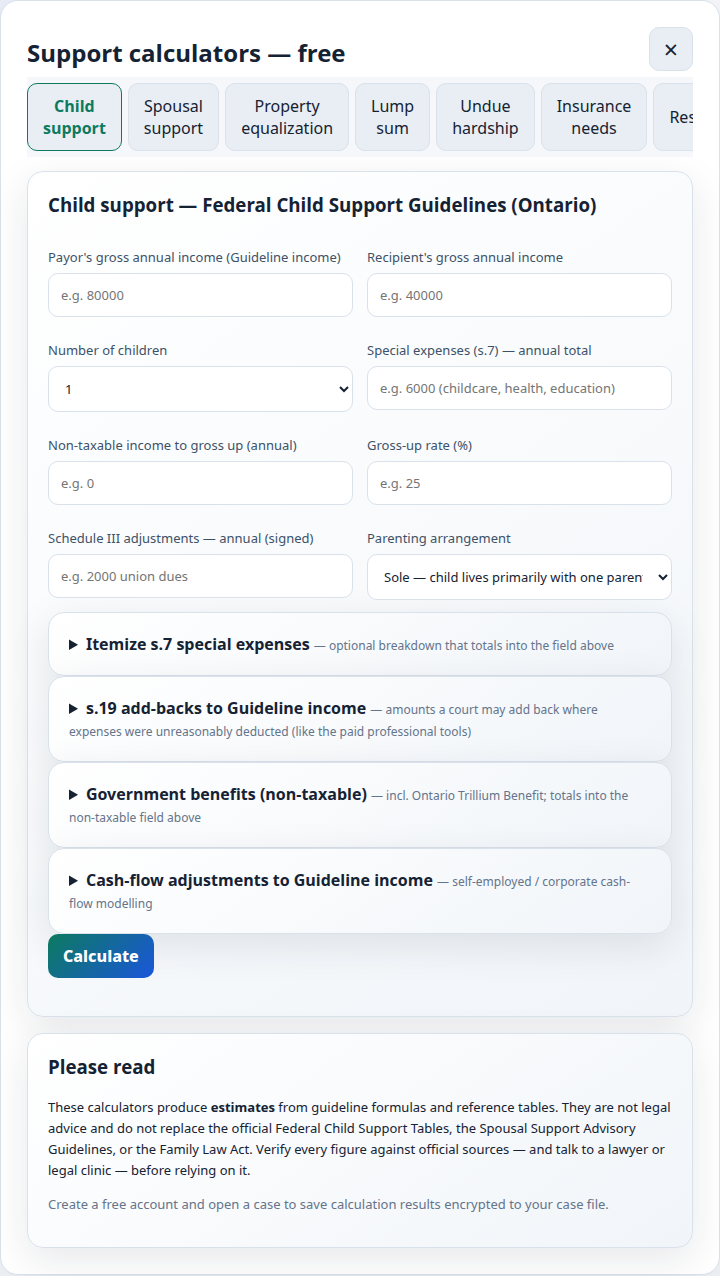
- Child support — Federal Child Support Guidelines table amounts by income, number of children, and parenting arrangement; section 7 add-ons; split/shared options; income modelling (Schedule III adjustments, section 19 add-backs, self-employment cash-flow adjustments, non-taxable benefits such as the Ontario Trillium Benefit grossed up). Modelling inputs are estimates only — courts decide what counts.
- Spousal support — advisory-guideline ranges with the inputs shown so the range can be reproduced.
- Net family property — each spouse's assets, debts, valuation-date and marriage-date property, exclusions, and the resulting equalization payment.
- Plus: lump-sum, undue-hardship, insurance-needs, and support-restructuring models.
Inside a case you can save results (with inputs preserved) and compare up to four what-if scenarios per calculator. Calculators are research tools — verify every figure against the official tables before relying on it in negotiation, mediation, or court.
4 · Action items & SWOT
The Action items tab is your per-case to-do list: a title, high/medium/low priority, an optional due date (wired into the reminder system), an optional link to a case area (a form, a document, an email draft, a tab, or a URL), notes, and a checkbox. Filter by Open / Completed / All and by priority.
The SWOT tab is a litigation-strategy tool: it auto-drafts a four-quadrant analysis (Strengths, Weaknesses, Opportunities, Threats) from your live case data, then you edit everything — add, edit, delete, and reorder items in each quadrant. Auto-seeded items are marked “suggested” and removable; your own items are never touched by suggestion refreshes. Everything is stored encrypted in your case.
5 · Reunify — the reunification planner
The 🤝 Reunify tab is a guided planner for re-establishing parenting time with an absent parent where there are no substantial safety concerns — absence due to distance, work, prior conflict, or drift, not violence or abuse. A mandatory safety gate is the first screen: if there are safety concerns, this tool is not the right one.
Inside: a template gallery, a readiness assessment, a phased plan builder (the core), professional-support guidance, a progress log, child-centred guidance, and a setback protocol for when things stall. It finishes with a formal “Proposal to Re-establish Parenting Time” document (the “Reunification Package — Proposal + Plan”) and a print package. The app handles: structuring the plan, the proposal document, the print package. You must do yourself: have a clinician, lawyer, or reunification professional review the plan — this is a planning aid, not professional advice.
6 · Child welfare — the concerns log
The 🧒 Child welfare tab is a responsible documentation tool: it helps a parent systematically record observations about the other parent's conduct that may not be conducive to the children's best interests — to bring to a CAS worker, an OCL clinician, a therapist, or a lawyer.
Two design rules keep it responsible: the log uses descriptive behavioral categories, never diagnostic labels, and the professional draws the conclusions — the tool says so everywhere the categories appear. You can print a concerns report for the professional. It is a record-keeping aid, not a weapon, and not a finding about anyone.
7 · Reminders — in-app only, by design
The Reminders & follow-ups panel (on the dashboard and wired into action items, deadlines, and tasks) checks when you open the app or a case — and only then. CourtBuddy sends no emails, no push notifications, and runs no background jobs: there is nothing to send them, by design (the server sends no email, ever). Reminders and follow-ups are stored encrypted in your case, never on the server.
The app handles: checking what's upcoming (next 30 days, overdue included) each time you open it. You must do yourself: open the app regularly and keep your own calendar — CourtBuddy cannot remind you when it is closed. Do not rely on the app alone for court deadlines.
8 · Comms — the co-parent email generator + BIFF checker
The Comms tab holds the Co-Parent Email Generator: pick a situation and it drafts an amicable, cordial, child-centred message — a draft generator only. CourtBuddy never sends email; the only outbound path is a mailto: prefill that opens your own mail app, where you review it and press send yourself.
Every template has 7 escalation levels: higher levels state factual next steps (cure deadlines, enforcement steps) — they never threaten, harass, insult, or coerce, and they still invite agreement. A BIFF check (Brief, Informative, Friendly, Firm) scans every draft, including enforcement drafts, and flags language worth softening. The app handles: the draft, the escalation ladder, the BIFF scan. You must do yourself: read the draft, fix anything that doesn't sound like you, and send it yourself.
9 · Batched directory printing
The Community Directory's 🖨️ Printing batches dialog handles large result lists without choking your printer: results print in batches of 30 (the default), and the dialog walks you through each batch — “Printing batch 1 of 5…”, and so on. After a quick-print quota, a short math security check appears before the next batch. Everything prints from your browser; nothing is uploaded.
10 · Form Repository front door — browse forms without opening a case
The 📁 Form Repository button on the Your cases dashboard opens the full built-in library — all 104 CourtBuddy-native templates — without any case open. Search by form number or title, filter by form-number family (applications, motions, financial statements, conferences, disclosure, witnesses, and more), and read each form's “use this when…” guidance card.
Picking a template with no case open never strands you: it prompts you to choose an existing case or start the new-case flow, then opens the form inside that case. Uploads stay per-case in your encrypted case data.
11 · Dashboard customization
Make the dashboard yours. Each customizable element — wallpaper, widget layout, news feeds, clock, quick-access dock, and welcome text — has both an Auto mode and a Custom mode, and you pick per element. Switching Auto → Custom never loses data: your custom choices are stored separately and restored if you switch back.
These are device-level preferences; the case-linked widgets still read only your encrypted case. Nothing you customize changes your data or leaves your device.
12 · Mission Control — the next-steps hub
The 🎛 Mission tab (plus a compact widget on your dashboard) is your case's next-steps hub: suggested steps computed client-side from your encrypted case data — no new server endpoints, no network calls — alongside custom steps you add yourself. Mark suggestions done, dismiss the ones that don't fit (with a reason), and arrange the layout: reorder sections, hide the ones you don't use, collapse the rest.
The app handles: surfacing what's next, tracking what's done, remembering your layout. You must do yourself: decide what actually matters — suggestions are prompts from your own data, not legal advice.
Support calculators
⚖ Ontario law as of 2026-10-02. Legal information only — not legal advice. Verify against official sources: Ontario laws · Ontario Court Forms · Federal laws.
Ontario CourtBuddy includes child support, spousal support, net family property (equalization), lump-sum, undue-hardship, insurance-needs, and support-restructuring calculators. They are free with no account from the home page; inside a case, results can be saved to the case (encrypted) with their inputs, and up to four what-if scenarios per calculator can be compared.
- Child support — table amounts by income, number of children, and parenting arrangement, plus section 7 (special/expense) add-ons.
- Spousal support — advisory-guidelines ranges with the inputs shown so the range can be reproduced.
- Net family property — each spouse’s assets, debts, valuation-date and marriage-date property, exclusions, and the resulting equalization payment.
- What-if scenarios — duplicate any saved calculation, change one input, and compare outcomes side by side.
Court forms & workflows
⚖ Ontario law as of 2026-10-02. Legal information only — not legal advice. Verify against official sources: Ontario laws · Ontario Court Forms · Federal laws.
The Forms tab provides guided worksheets and checklists for the Ontario Family Law Rules forms most people need — applications, financial statements (Forms 13 / 13.1), motions, affidavits, and divorce paperwork — plus disclosure tracking, offer-to-settle drafting tools, deadline checklists, and filing-package assembly. The Quick intake feature can read an uploaded PDF or Word document and detect which official form it is, then pre-fill matching fields.
Official forms live on the official site
Court forms are Crown copyright material published by the Ministry of the Attorney General. Ontario CourtBuddy links to the official forms — it never re-hosts or republishes court PDFs or Word files. Workflow buttons open the official Family Law Rules table in a new tab, where you download the current version directly from the source:
- Ontario Court Forms — Family Law Rules table (English) ↗
- Formules des Règles en matière de droit de la famille (français) ↗
- Ontario Court Dates — daily Superior Court and Ontario Court of Justice lists ↗
Because the official site blocks embedding (X-Frame-Options), CourtBuddy opens forms in a new tab rather than inside the app. Always download the form on the day you fill it in — revisions replace the file, and an old copy may be out of date.
Resources: legal information & help
⚖ Ontario law as of 2026-10-02. Legal information only — not legal advice. These are independent resources, not affiliated with CourtBuddy. What each one is for, in one line:
- CanLII ↗ — what it’s for: reading the actual cases, statutes, and regulations behind a legal position, free.
- OpenCase ↗ — what it’s for: asking plain-language legal questions and getting answers grounded in real cases and statutes (a starting point, not advice — verify against the primary sources).
- Legal Aid Ontario ↗ — what it’s for: free or low-cost legal help if you qualify financially; also funds duty counsel at courthouses. 1-800-668-8258.
- Family Law Information Centres (FLICs) ↗ — what it’s for: free in-courthouse help understanding separation/divorce, court forms, court process, and referrals to local services (information, not legal advice).
- 211 Ontario ↗ — what it’s for: referrals to community and social services across Ontario, in 150+ languages; dial 2-1-1, free and confidential.
- Steps to Justice ↗ — what it’s for: CLEO’s plain-language family-law Q&A and Guided Pathways. Linked only — their content stays on their site; CourtBuddy never embeds or republishes it.
The app footer also carries the Indigenous land acknowledgement with a link to native-land.ca ↗ (explore Indigenous territories).
Safety & protection
⚖ Ontario law as of 2026-10-02. Legal information only — not legal advice. Verify against official sources: Ontario laws · Ontario Court Forms · Federal laws.
Restraining orders vs. peace bonds — at a glance
| Restraining order | Peace bond | |
|---|---|---|
| Court | Family court (Superior Court of Justice) | Criminal court (Ontario Court of Justice) |
| Law | Children’s Law Reform Act s.35 (any person) / Family Law Act s.46 (spouse, former spouse, or cohabitant) | Criminal Code s.810 / 810.1 / 810.2 |
| Standard | Reasonable grounds to fear for your safety or a child’s | Reasonable grounds to fear injury or damage |
| How obtained | Motion (Form 8/14/14A); can be made without notice if urgent | Application at the courthouse; information sworn under oath; judge decides |
| Duration | No maximum duration | At most 12 months; not renewable — you must reapply |
| Cost | Appears fee-exempt — confirm with the court | Free |
| If breached | Criminal offence; police may arrest without warrant | Criminal offence (s.811) |
The app’s Safety tab includes a step-by-step wizard that asks four questions and points you to the right tool — restraining order, peace bond, or other remedy — plus plain-language guides, a safety-planning checklist, and tech-safety notes (location sharing, shared accounts, browser history). Nothing in the wizard is saved unless you choose to save it, and the quick-exit button is always visible.
Crisis lines — free, confidential, 24/7 unless noted
1-866-863-0511 (24/7)
GTA: 416-863-0511 · TTY: 1-866-863-7868
2-1-1 (24/7)
Community and social service referrals, 150+ languages
1-800-668-6868 (24/7)
Text CONNECT to 45645
1-877-336-2433
Francophone crisis line for women experiencing violence
1-855-554-4325 (24/7)
Culturally grounded helpline for Indigenous women, by Indigenous women
1-866-299-1011 (24/7)
Support for older adults experiencing abuse
1-888-579-2888
Information about criminal cases and victim services
1-800-668-8258
Free or low-cost legal help if you qualify financially
Quick exit takes you to a neutral site — it cannot erase your browser history. Use private/incognito browsing for sensitive searches, and consider a safety plan with a helpline if someone monitors your devices.

Community Directory & Housing Registry
Both directories are public — no account needed — from the home page or inside the case workspace. They are static, compiled datasets: searchable, printable, and free.
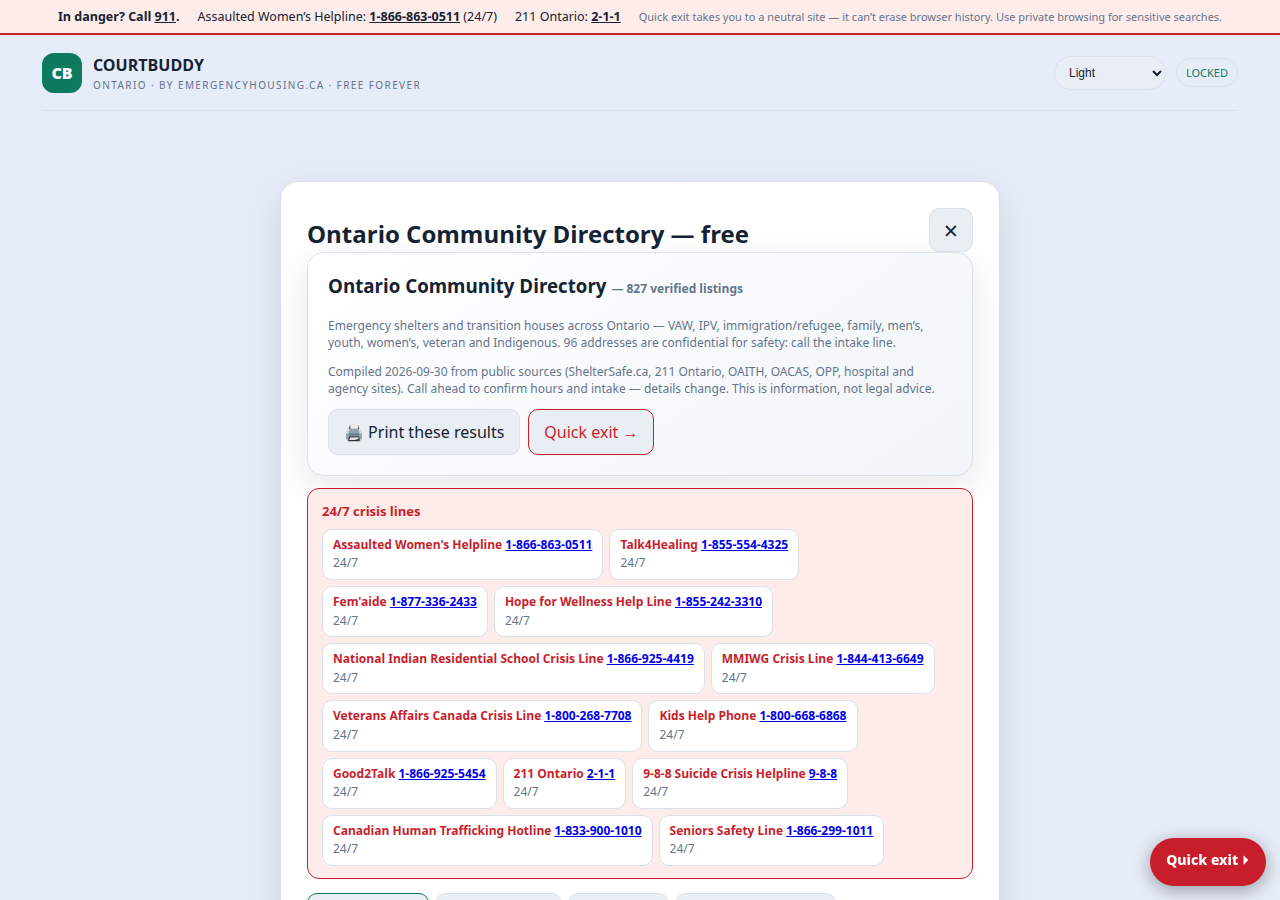
Ontario Community Directory — 2,088 verified listings
Compiled October 1, 2026 from the merged community-directory dataset (the owner's directory projects plus municipal and agency sources). Seventeen searchable sections, with their own section for legal clinics:
- Shelters — 499 listings. Some addresses are confidential by design; call the intake line — addresses are withheld for safety.
- Hospitals — 244 listings.
- Police — 189 listings.
- Victim services — 124 listings.
- Children's aid — 50 societies, including section 125 reporting duty information.
- Food banks — 126 listings.
- Legal clinics — 68 listings.
- Mental health — 96 listings.
- Community health — 104 listings.
- Housing help — 126 listings.
- Drop-ins — 111 listings.
- Basic needs — 127 listings.
- Settlement — 38 listings.
- Income support — 72 listings.
- Addiction & harm reduction — 34 listings.
- Advocacy & rights — 54 listings.
- Family supports — 26 listings.
Plus 36 crisis lines. A quick-exit button and printable result lists are built in. Call ahead before going — hours, intake rules, and availability change.
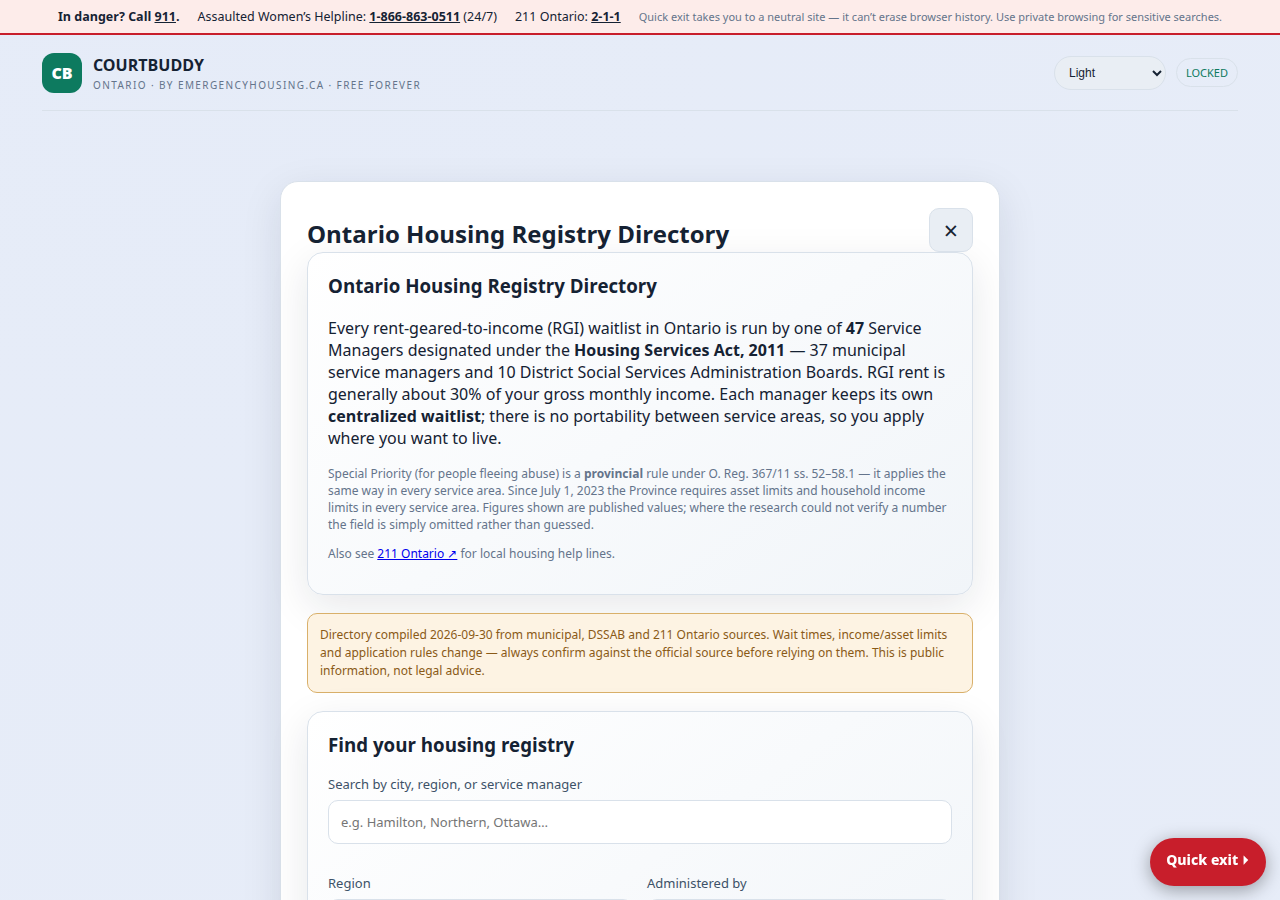
Ontario Housing Registry Directory — all 47 service managers
All 47 Housing Services Act service managers/DSSABs (37 municipal + 10 District Social Services Administration Boards, per O. Reg. 367/11 Schedule 2): how to join the waitlist, how to apply for rent-geared-to-income (RGI), eligibility rules, income and asset limits, priority categories, reported wait times, and sources for each entry.
Security & privacy
Ontario CourtBuddy is built on a simple idea: the server should never be able to read your case. Encryption happens in your browser with the Web Crypto API; the server stores ciphertext, encrypted key envelopes, account identifiers, and authentication verifiers — never readable case contents or plaintext case keys.
The actual primitives
- Password → encryption key (in your browser): PBKDF2-SHA-256 with 5,000,000 iterations and a 128-bit random salt per account. This is key derivation — it turns your password into the key that encrypts your case data locally. It never leaves your browser.
- Password verifier (on the server): Argon2id (128 MiB memory, 6 passes, 2 threads). The server stores only this one-way verifier — never your password and never your encryption key. Sign-in still sends your password to the server over HTTPS for this check, so a compromised server could attempt offline guessing against weak passwords — another reason to choose a long password.
- Case data: each case gets a fresh random 256-bit AES-GCM key; every encrypted payload gets a fresh 96-bit IV. AES-GCM provides authenticated encryption — tampered ciphertext fails to decrypt rather than decrypting to garbage.
- Multi-user cases: each account has an RSA-OAEP/SHA-256 (2048-bit) keypair. The private key is encrypted locally with your password-derived key. Inviting someone wraps the case key to their public key — the plaintext case key exists only in browser memory while unlocked.
- Transport & headers: HTTPS in production, plus restrictive security headers and a content security policy.
- Bot protection on signup: a randomized math challenge instead of a third-party CAPTCHA, so no external service sees your signup.
Honest limitations
- No password reset is possible — ever. There is no backup key, admin decryption key, or recovery token. Losing your password means losing access to your encrypted data. This is the price of the server not being able to read your data.
- Your account email is visible to the server. Case contents are encrypted, but the email you sign up with is necessarily known to the server (and it appears in server logs and backups).
- Authentication is not fully password-blind. The server holds a conventional password verifier, so a compromised server could attempt offline guessing against weak passwords — another reason to choose a long password.
- A compromised browser or device defeats encryption. While a case is unlocked, its contents exist in browser memory. Malware, a malicious browser extension, or someone looking over your shoulder can see what the server cannot.
- No independent security audit or penetration test has been performed on this software. The design is documented openly so it can be reviewed, but it has not been certified by anyone.
We describe the cryptography in plain terms on purpose — standard published primitives, stated honestly, with no inflated marketing claims.
Honest stack limits — what CourtBuddy cannot do
- No push notifications. CourtBuddy cannot notify your phone in the background. Deadline and reminder checks run client-side when you open the app — if you do not open it, nothing checks anything. Check your deadlines on your own schedule; do not rely on the app to remind you.
- No server email. The server never sends email — no signup confirmations, no reminders, no password resets (there is no password to reset). Any email claiming to be from CourtBuddy about your case should be treated as suspicious.
- No background jobs or cron. There is no scheduler, queue, or background worker. Everything runs in your browser, in the moment, while the page is open.
- Zero-knowledge storage means zero recovery. The server stores ciphertext it cannot read. Nobody — not the operator, not support — can recover your password or decrypt your cases without it.
- Simple, boring stack: PHP 8.1 with a SQLite database. No external services, no analytics trackers, no third-party CAPTCHA.
- Deploy = delete + reinstall. Upgrading means deleting the old installation folder and installing the new one. This wipes the database. Export your encrypted case backup before every upgrade and keep your password somewhere safe — you will need it to unlock the backup.
Backups, printing & exports
- Encrypted backup — from the Overview tab, “Encrypted backup” downloads
courtbuddy-encrypted-case-backup.json: your case data encrypted with your case key. It is unreadable without your account password. Store it somewhere safe (and private); it is your lifeline across the delete-and-reinstall upgrade process. - Restore — there is no in-app one-click restore in this version: a backup is re-imported through the normal case-creation and unlock flow. Keep both the backup file and your password.
- Printing — the Community Directory prints result lists; the Safety tab offers safe print, which hides the Safety tab and the crisis bar from the printed page so a printout cannot reveal that you were reading protection-order information.
- Never upload plaintext exports to untrusted storage. Anything you print or export outside the encrypted backup is readable by whoever holds it.
Troubleshooting
Real problems, real fixes. If none of these fit, lock the workspace and start from the dashboard — most transient issues clear on a fresh load.
“My workspace locked unexpectedly.”
Why it happens: the workspace locks when you press Lock now or Lock & sign out, when the session expires, or after idle time. This is a safety feature, not a bug.
The fix: enter your account password on the lock screen — the workspace re-opens exactly where you were. If the password isn’t accepted, you are almost certainly mis-typing it (check caps lock and keyboard language); there is no password reset, by design — see FAQ. Prevention: keep your password in a password manager and keep a current encrypted backup (Guide 5 above), so a worst case is recoverable.
“‘Updated just now’ isn’t appearing.”
Why it happens: the automation cascade regenerates a surface only when data it depends on actually changed and was saved. A stamp that doesn’t move usually means nothing it depends on changed — the app is correct, not stuck.
The fix: (1) confirm the change was saved in the case (look for the save confirmation, not just the typed text); (2) switch to the affected tab and wait a few seconds; (3) reload the page. If the stamp still shows an older time, the underlying data didn’t change — nothing is wrong.
“The upload analysis looks wrong.”
Why it happens: the document reader is heuristic — it guesses. Names with unusual formats, amounts written as words, and multi-column layouts are the usual suspects. Scanned/image PDFs (photos of pages) contain no selectable text at all.
The fix: (1) in the review tray, check the confidence % on each row — low-confidence rows are there for your decision; (2) fix the target dropdown (a birth date can land on the wrong person — change “Matter → respondent DOB” to the right person) or edit the value directly; (3) Dismiss / Keep current on wrong rows; (4) for scanned PDFs, paste the text manually into “Or paste document text” and re-run; (5) re-analyze after fixing the source text. Never apply rows you haven’t read.
“The print package is blank (or nothing opened).”
Why it happens: print packages open in an in-page preview (not a new window), and generators require the lawyer-review acknowledgement gate before printing. If the preview is blank, you skipped a required step — the package only includes completed sections.
The fix: (1) complete all required fields and the ack checkbox in the generator first; (2) in the preview, click 🖨 Print / Save PDF to open your browser’s print dialog (choose Save as PDF there); (3) close the preview with the ✕ Close button, the backdrop, or Esc — printing closes the preview automatically. If the preview itself never appears, reload the page and try again.
“My export file won’t import.”
Why it happens: import verifies integrity before writing anything and refuses the file with a specific reason: “not a CourtBuddy encrypted package” (wrong file picked), version mismatch (exported from a newer app version than the one importing), or missing/truncated encrypted data (incomplete download or corrupted file). Packages are also keyed to your account’s encryption keys — they cannot be opened by another account or without your password.
The fix: (1) re-export from the Overview → Import / export card; (2) let the download finish fully, then import again; (3) import into the same or a newer version of the app, signed in as the same account that exported it. If it still refuses, the file is corrupted — export a fresh one from the working session before it’s gone.
Frequently asked questions
⚖ Ontario law as of 2026-10-02. Legal information only — not legal advice. Verify against official sources: Ontario laws · Ontario Court Forms · Federal laws.
1 · Is Ontario CourtBuddy really free?
Yes. Entirely free, free forever. No subscriptions, no per-file fees, no paid tiers, no feature paywalls. The calculators, Community Directory, and Housing Registry Directory need no account; the full workspace needs only a free account. It is operated by EmergencyHousing.CA as a public-interest project.
2 · Do I need an account to use the calculators?
No. All calculators run free without an account. An account only adds the ability to save results into an encrypted case, run what-if scenarios, and use the rest of the workspace.
3 · I forgot my password. Can you reset it?
No — and that is deliberate. Your password unlocks encryption keys that exist only in your browser. There is no reset token, backup key, or admin override. If you lose your password, your encrypted case data cannot be recovered by anyone, including the operator. Write it down and store it somewhere safe.
4 · Can the people who run CourtBuddy read my case?
No. Case contents are encrypted in your browser with AES-256-GCM before storage. The server holds ciphertext, encrypted key envelopes, and account identifiers — never readable case contents or plaintext case keys. Your signup email is visible to the server, and no independent audit has been performed (see Security & privacy).
5 · Will CourtBuddy remind me about deadlines?
Only when you open the app — reminder checks run client-side on load. CourtBuddy sends no emails, no push notifications, and runs no background jobs. Track court deadlines in your own calendar as well; do not rely on the app alone.
6 · Is this legal advice?
No. Everything here is general legal information for research purposes. It is not legal advice, and using the app does not create a lawyer–client relationship. Verify figures and procedures against official sources and consult a licensed Ontario lawyer or legal clinic about your situation.
7 · Where do the court forms come from?
From the official Ontario Court Forms site (ontariocourtforms.on.ca ↗), which CourtBuddy links to. Forms are Crown copyright material — CourtBuddy never re-hosts court PDFs or Word files. Always download the form on the day you use it, since revisions replace the file.
8 · Are the calculator results exact?
No — they are research estimates. The Child Support Guidelines and Spousal Support Advisory Guidelines contain rules and exceptions no calculator fully captures. Verify every figure against the official tables before relying on it in negotiation, mediation, or court.
9 · What is the difference between a restraining order and a peace bond?
A restraining order is a family-court (civil) order — CLRA s.35 against any person, or FLA s.46 against a spouse/former spouse/cohabitant — with no maximum duration. A peace bond (Criminal Code s.810) is a criminal-court order, free, lasting at most 12 months and not renewable. Neither can guarantee physical safety; breach of either is a criminal offence. The Safety tab’s wizard walks through which tool fits your situation.
10 · Is the Community Directory really no-login?
Yes. All 2,088 listings — shelters, hospitals, police, victim services, children’s aid, food banks, legal clinics, mental health, community health, housing help, drop-ins, basic needs, settlement, income support, addiction & harm reduction, advocacy, family supports — plus the Housing Registry Directory (all 47 service managers/DSSABs) are public with no account. Some shelter addresses are confidential by design; call the listed intake line.
11 · How do upgrades work? Will I lose my data?
Upgrades are delete + reinstall: the old folder is deleted and the new one installed, which wipes the database. Before every upgrade, export your encrypted case backup and make sure you know your password — you will need both afterwards.
12 · Can I share a case with someone (e.g. a lawyer or mediator)?
Yes, via the Members tab: invite them by the email of their existing CourtBuddy account, and the case key is wrapped to their public key with RSA-OAEP. They must have their own account and their own password. The server never sees the plaintext case key.
13 · What does the Quick exit button do?
It immediately leaves CourtBuddy for a neutral website. It does not erase your browser history — use private/incognito browsing for sensitive searches, and clear history manually if someone monitors your device.
14 · What is “safe print”?
A Safety-tab option: when on, printing hides the Safety tab and the crisis bar from the printed page, so a printout cannot reveal that you were reading protection-order information.
15 · Does CourtBuddy work on my phone?
Yes — the layout is tested at 412px width with no horizontal scrolling. On a shared or monitored phone, use Quick exit, the privacy blur (Alt+P on desktop), and Lock & sign out.
16 · What are the 14 themes?
Light, White, Professional, Forest, Cyberpunk, Terminal, Peach, High visibility, Cybergeek, Matrix (with animated rainfall), Sunset, Notebook, Neutral, and Neutral dark. Theme choice is cosmetic and stored on your device.
17 · What is Quick intake?
Upload an existing court document (PDF or Word) and CourtBuddy detects names, dates, dollar figures — and which official form it is — then offers to apply them to your case. You review everything before anything is saved.
18 · Who operates Ontario CourtBuddy?
EmergencyHousing.CA, as a free public-interest project. The app header and footer on every page show “powered by EmergencyHousing.CA”.
19 · Is there really no email from the server?
Correct — the server never sends email. No confirmations, no reminders, no newsletters, no password resets. Treat any email claiming to be CourtBuddy about your case as suspicious.
20 · What technology runs CourtBuddy?
A deliberately simple stack: PHP 8.1 with a SQLite database, and browser-side encryption via the Web Crypto API. No external analytics, no third-party CAPTCHA, no background workers.
21 · Can I use CourtBuddy in French?
The app interface is English, but CourtBuddy links to the official French court forms (formules en français ↗) and lists the French crisis line Fem’aide (1-877-336-2433).
22 · What happens if I stop using the app — is my data deleted?
Your encrypted data stays in the database until the installation is deleted or upgraded (delete + reinstall wipes it). To delete everything yourself, go to the Settings tab — Danger zone — “Delete account…”: enter your account password, type DELETE, and confirm. This permanently deletes your account and every case you own; there is no undo. Before you do it, export your encrypted case backup and make sure you know your password — you will need both if you ever want that data back. Locking and signing out only ends the session on that device.
23 · Can CourtBuddy file documents with the court for me?
No. CourtBuddy prepares, organizes, and prints — it does not file anything, does not communicate with any court, and has no connection to the Ontario courts’ systems. Filing is done by you, at the courthouse or through the court’s own channels.
24 · Where can I get free legal advice in Ontario?
Legal Aid Ontario: 1-800-668-8258. Community legal clinics across Ontario offer free summary advice; 211 Ontario (2-1-1) can refer you to one nearby. CourtBuddy is a research tool — it is not a substitute for a lawyer.
25 · Where is my data stored?
In the app’s database on the server — but only as ciphertext. CourtBuddy is zero-knowledge: your case is encrypted in your browser (AES-256-GCM, with your password stretched through 5,000,000 PBKDF2 iterations) before anything is stored. The server sees encrypted blobs it cannot read — which is also why it cannot recover your password or your data. Your signup email is visible to the server; reminder titles live in your browser’s storage only, never on the server. See Security & privacy.
26 · What are test accounts, and when do they vanish?
Test accounts are throwaway accounts for testing, flagged in the system and created through an unlisted route — they are never mentioned on the sign-in screen and never appear as a public option. They exist so new builds can be verified end-to-end without touching real data. They are automatically purged whenever the app is upgraded (upgrades are delete + reinstall). If you used one, export anything you need before an upgrade — afterwards it’s gone.
27 · Which browsers are supported?
Any modern browser with Web Crypto API support: current Chrome, Edge, Firefox, and Safari — on desktop and on mobile. Very old or obscure browsers are not supported (encryption requires modern browser cryptography). The layout is tested at 412px mobile width with no horizontal scrolling.
28 · Does Send & Share email anything for me?
No — never. The server sends no email, ever. “Open in my mail app” opens your email app with a prefilled message; you review it and press send. “Build print package” opens a print-ready window; “Download encrypted file” gives you a password-protected file to send however you choose. Nothing leaves CourtBuddy until you send or print it yourself.
29 · Why did sign-up ask about my email if CourtBuddy never sends email?
CourtBuddy checks that your address looks real and its domain can receive mail — format rules, a “Did you mean …?” prompt for typos, a mail-server (MX) check, a block on throwaway addresses, and a soft warning for role addresses like admin@. The server never sends email — no confirmations, no reminders, no resets. These checks confirm the address is receivable; they cannot prove you own the mailbox, and the sign-up screen says so.
30 · How do I build a parenting-time calendar?
Open the 🗓 Access calendar tab → Access Calendar Generator. Import → ⇪ Pull from access calculator pulls a schedule from the access calculator, Load documented demo schedule shows a sample year, or paint days by hand. It understands Canadian occasions (Family Day, March Break, the Christmas school break…), alternating-year holidays, per-day notes, and exchange times — and prints the year with the Ontario CourtBuddy brand mark on page one.
31 · What is in the calculators suite?
Child support (Federal Child Support Guidelines tables, section 7 add-ons, split/shared options, income modelling), spousal support (advisory-guideline ranges), net family property (equalization), plus lump-sum, undue-hardship, insurance-needs, and support-restructuring models. All free with no account; inside a case you can save results and compare up to four what-if scenarios per calculator. Verify every figure against the official tables before relying on it.
32 · What are Action items and SWOT for?
Action items is a per-case to-do list: title, high/medium/low priority, due dates wired into reminders, links to case areas (a form, document, email draft, or tab), and Open/Completed/All views. SWOT auto-drafts a four-quadrant Strengths/Weaknesses/Opportunities/Threats analysis from your live case data, which you then edit freely — suggested items are marked “suggested” and removable; your own items are never touched. Both are stored encrypted in your case.
33 · What is the Reunify tool for?
The 🤝 Reunify tab is a guided planner for re-establishing parenting time with an absent parent where there are no substantial safety concerns (absence due to distance, work, prior conflict, or drift — not violence or abuse). A mandatory safety gate is the first screen. Inside: readiness assessment, a phased plan builder, progress log, setback protocol, and a formal “Proposal to Re-establish Parenting Time” document with a print package. It is a planning aid, not professional advice — have a clinician, lawyer, or reunification professional review the plan.
34 · What is the Child welfare tab for?
A concerns log for systematically recording observations about the other parent's conduct that may not serve the children's best interests — to bring to a CAS worker, an OCL clinician, a therapist, or a lawyer. It uses descriptive behavioral categories, never diagnostic labels; the professional draws the conclusions. It is a record-keeping aid, not a finding about anyone.
35 · Do reminders work when the app is closed?
No — reminders are in-app only. The Reminders & follow-ups panel checks when you open the app or a case, and only then. CourtBuddy sends no emails, no push notifications, and runs no background jobs — by design. Reminders are stored encrypted in your case. Keep your own calendar too; do not rely on the app alone for court deadlines.
36 · How does the Comms email generator work?
The Comms tab is a draft generator only — CourtBuddy never sends email. Pick a situation and the Co-Parent Email Generator drafts an amicable, child-centred message with 7 escalation levels (higher levels state factual next steps, never threats or insults). A BIFF check (Brief, Informative, Friendly, Firm) scans every draft. The only outbound path is a mailto: prefill that opens your own mail app — you review it and press send.
37 · How does batched directory printing work?
Large directory result lists print in batches of 30 (the default) via the 🖨️ Printing batches dialog, which walks you through each batch. After a quick-print quota, a short math security check appears before the next batch. Everything prints from your browser; nothing is uploaded.
38 · Can I browse the form library without opening a case?
Yes — the 📁 Form Repository button on the Your cases dashboard opens the full built-in library (all 104 CourtBuddy-native templates) with no case open: searchable by number or title, filterable by form-number family, with each form's “use this when…” guidance card. Picking a template with no case open prompts you to choose an existing case or start the new-case flow.
39 · Can I customize the dashboard?
Yes. Each customizable element — wallpaper, widget layout, news feeds, clock, quick-access dock, and welcome text — has both an Auto mode and a Custom mode, chosen per element. Switching Auto → Custom never loses data; custom choices are stored separately and restored if you switch back. These are device-level preferences; case widgets still read only your encrypted case.
40 · What is Mission Control?
The 🎛 Mission tab (plus a compact dashboard widget) is your case's next-steps hub: suggested steps computed client-side from your encrypted case data — no new server endpoints, no network calls — plus custom steps you add yourself. Mark suggestions done, dismiss the ones that don't fit (with a reason), and arrange the layout: reorder sections, hide what you don't use, collapse the rest. Suggestions are prompts from your own data, not legal advice.
41 · What is SmartSelect autocomplete in forms?
Form fields that pick from a list (courthouse, city, party, lawyer, court file number) use filter-as-you-type autocomplete: start typing and pick, or keep your own text — you are never trapped by the list. The courthouse source is a verified courthouse dataset (name, address, and city searchable); other sources come from your own case profile. Suggestions are computed entirely on your device — nothing leaves it. You can save your own custom entries (courthouse/city) to a personal list, stored only in your browser.
42 · What is the review tray in Quick intake?
After Quick intake analyzes a document, each detected value is scored by confidence. High-confidence values on empty fields are applied automatically; medium-confidence values — and every dollar amount — go to the review tray instead of being written into your case silently. You accept or dismiss each item individually, or accept all at once. Every imputed value is also written to an audit log (source document, date, confidence, previous value) with one-tap revert per field — so nothing is ever lost and nothing is ever changed without your review.
Glossary
⚖ Ontario law as of 2026-10-02. Legal information only — not legal advice. Verify against official sources: Ontario laws · Ontario Court Forms · Federal laws.
- Applicant / Respondent
- The person who starts a court case (applicant) and the person who responds to it (respondent).
- Case conference
- An early, informal meeting with a judge to identify issues and explore settlement. Many motions require one first, unless urgency excuses it (Family Law Rules 14(4.2)).
- Child Support Guidelines
- The federal regulation setting table amounts of child support by payor income, number of children, and province.
- CLRA
- Children’s Law Reform Act (Ontario) — covers decision-making responsibility, parenting time, contact, and restraining orders (s.35) against any person.
- Continuing record
- The court file’s organized set of documents; parties add to it as the case proceeds.
- Disclosure
- The obligation to share complete financial information with the other party — tax returns, pay stubs, bank statements, and more.
- Equalization (net family property)
- The sharing of the growth in net family property during a marriage: each spouse’s NFP is calculated and the spouse with the higher NFP pays half the difference.
- FLA
- Family Law Act (Ontario) — covers support, property, restraining orders against spouses (s.46), and exclusive possession of the matrimonial home (s.24).
- FLR
- Family Law Rules (Ontario) — the procedural rules for family cases, including which form to use and when.
- Form 13 / 13.1
- The Financial Statement: Form 13 for support claims, Form 13.1 for property and support claims. Sworn/affirmed under oath.
- Motion to change
- A request to change a final order or agreement when there has been a material change in circumstances (Form 15 series).
- Offer to settle
- A formal written proposal to resolve issues; has cost consequences under the Family Law Rules if unreasonably refused.
- Peace bond
- A criminal-court order (Criminal Code s.810) requiring a person to “keep the peace” under conditions; at most 12 months, not renewable.
- Restraining order
- A family-court order restricting contact or proximity; CLRA s.35 (any person) or FLA s.46 (spouse/former spouse/cohabitant); no maximum duration.
- RGI
- Rent-geared-to-income: subsidized rent set at roughly 30% of household income, administered through local service managers.
- Section 7 expenses
- Special or extraordinary expenses for children (childcare, medical, post-secondary, etc.) shared in proportion to incomes on top of table support.
- Service manager / DSSAB
- The municipal or district body that administers housing and homelessness services, including RGI waitlists, under the Housing Services Act.
- Without notice (ex parte) motion
- A motion heard without telling the other side first, allowed only where urgency or risk justifies it; the other side is told afterwards and can respond.
- Zero-knowledge storage
- An architecture where the server stores only ciphertext it cannot decrypt — so it also cannot recover your password or your data.
Terms of Service summary
The full, binding document is the Terms of Service, Waiver, Indemnification and Hold Harmless Agreement. In plain language, it says:
- Research purposes only. The app is provided strictly for research, educational, and informational purposes — not legal advice. Calculations and documents are approximations that must not be relied on without independent review by a licensed Ontario lawyer.
- Waiver and release. You use the app at your own risk and release the operators from claims arising from that use, including reliance on its outputs.
- Indemnification — hold harmless. You agree to indemnify, defend, and hold harmless emergencyhousing.ca and the other released parties against claims, damages, and costs (including legal fees) connected with your use of the app or your violation of the agreement. This survives termination.
- Limited liability. The full Terms of Service set out the liability limits that apply; read them at terms.html before relying on the app.
- Ontario law, Ontario courts. The agreement is governed by the laws of Ontario, with exclusive jurisdiction in Ontario.
- No warranty. The app is provided as-is, without warranties of accuracy, completeness, or fitness for any purpose.
You accept these terms when you create an account. This summary is not the agreement — read the full Terms before signing up.